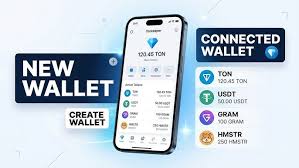

A safe digital wallet is key for crypto airdrops. You need to set it up properly to receive tokens. This guide shows you the best ways to do that. It focuses on security and ease. Get ready to manage your crypto rewards.
What Is a Crypto Wallet for Airdrops?
A crypto wallet is your digital tool. It holds your digital money, like Bitcoin or Ethereum. Think of it as your online bank account. But you are in total control. For airdrops, you need a wallet that can receive these free tokens. Many tokens live on different blockchain networks. So, your wallet needs to support these networks.
Most airdrops ask for your wallet’s public address. This is like your P.O. Box number. You share it so they can send you the coins. They never need your private key. Your private key is like your bank PIN. Never share it. A good wallet for airdrops is secure. It also makes it easy to see the tokens you receive.
Why Setting Up Your Wallet Matters
The way you set up your wallet can make or break your airdrop experience. A poorly set up wallet can lead to lost funds. It can also make you a target for hackers. Scammers often look for easy targets. They want to trick people into giving up their private keys.
When you get an airdrop, it’s usually sent to your public address. If your wallet isn’t set up right, you might not even see the new tokens. Some tokens are new. They might not show up automatically. You might need to add their contract address. This makes them visible in your wallet.
Security is another huge part of it. A secure wallet protects your existing crypto too. You don’t want to risk losing what you already have. Think of it like securing your house. You wouldn’t leave the door unlocked, right? Your digital assets need the same care.
Understanding Different Types of Wallets
There are several kinds of crypto wallets. Each has pros and cons. For airdrops, some are better than others.
Hot Wallets
Hot wallets are connected to the internet. This makes them easy to use. But it also makes them less secure.
Web Wallets: These are run through websites. You log in with your email and password. Examples include exchange wallets like Coinbase or Binance. They are very convenient. But you don’t truly own your private keys. The exchange does.
Mobile Wallets: These are apps on your phone. They are often very user-friendly. You can make transactions quickly. Trust Wallet and Exodus are popular examples. They offer a good balance of ease and control.
Desktop Wallets: These are programs you install on your computer. They offer more control than web wallets. But if your computer gets a virus, your wallet could be at risk.
For airdrops, mobile and desktop wallets are often good choices. They give you more control than web wallets.
Cold Wallets
Cold wallets are not connected to the internet. This makes them the most secure option.
Hardware Wallets: These are physical devices. They look like USB drives. Examples include Ledger and Trezor. You store your private keys on the device. To make a transaction, you plug it into a computer. This is the safest way to store large amounts of crypto.
For airdrops, you don’t need a hardware wallet. You want a wallet that can easily interact with dApps (Decentralized Applications). Hardware wallets are more for long-term storage of significant value. They can be a bit more complex for frequent airdrop claiming.
Choosing the Right Wallet for Airdrops
For most people starting with airdrops, a software wallet is best. It needs to be compatible with the blockchains where airdrops are common. The most popular are Ethereum, Binance Smart Chain (BSC), Polygon, and Solana.
Metamask: The Popular Choice
Metamask is the most widely used wallet for Ethereum-based networks. It’s a browser extension and a mobile app.
Why it’s good for airdrops: Many airdrops happen on Ethereum or networks compatible with Ethereum. Metamask makes it easy to connect to these networks. You can also add custom tokens easily.
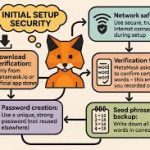
How it works: You download it as a browser extension. Then, you create a new wallet. This gives you a secret recovery phrase (also called a seed phrase or mnemonic phrase). This phrase is critical for backing up your wallet. You’ll also create a password.
Other Good Options
Trust Wallet: A very popular mobile wallet. It supports many different blockchains. It’s easy to use and great for beginners.
Phantom Wallet: This is the go-to wallet for the Solana network. If you see airdrops specifically for Solana projects, you’ll need this.
Coinbase Wallet: This is different from the Coinbase exchange account. Coinbase Wallet is a standalone app where you control your keys. It supports many networks.
Setting Up Metamask: A Step-by-Step Guide
Let’s go through setting up Metamask. This is a common choice for many airdrops.
Step 1: Download Metamask
Go to the official Metamask website. Be very careful to only download from the official source. Search for “Metamask download”. You will see options for Chrome, Firefox, Brave, Edge, and mobile apps for iOS and Android.
Important Note on Downloads
Always verify the website URL. Scammers create fake Metamask sites. Look for metamask.io. Never download from links sent in emails or social media.
Step 2: Create a New Wallet
Once installed, Metamask will guide you. Click “Get Started”. You will see two options: “Import wallet” or “Create a new wallet”. Since we are setting up for airdrops, choose “Create a new wallet”.
You’ll be asked if you want to help improve Metamask. You can choose “Yes” or “No”. It doesn’t affect your wallet’s function.
Step 3: Set Your Password
Next, you need to create a password. This password protects your Metamask extension on your browser. It is not the same as your recovery phrase. Choose a strong password. You’ll use this every time you open Metamask on a new browser session.
Step 4: Discover Your Secret Recovery Phrase
This is the MOST important step. Metamask will show you your secret recovery phrase. It’s usually 12 words. These words, in the correct order, are the master key to your wallet.
Your Secret Recovery Phrase: The Golden Rule
Write it down. Do not take a screenshot. Do not save it in a digital file. Write it on paper.
Store it somewhere very safe. Think of a safe deposit box, or a hidden spot in your home. Never share it with anyone. Anyone who has your recovery phrase can access all your crypto.
Metamask will ask you to confirm your phrase. They will ask you to click the words in the correct order. This ensures you have written it down properly.
Step 5: Add Networks (Optional but Recommended)
Metamask usually starts with the Ethereum network. Many airdrops happen on other networks. You will want to add these.
To add a network, click on the network dropdown at the top of Metamask. It usually says “Ethereum Mainnet”. Click “Add Network”.
You can add networks manually. Or you can use sites like Chainlist.org. Chainlist.org lists many blockchains. You can connect your Metamask to it. Then, click “Add to Metamask” for the networks you want.
Here are common networks you might add:
Binance Smart Chain (BSC) Mainnet:
Network Name: Smart Chain
New RPC URL: https://bsc-dataseed.binance.org/
Chain ID: 56
Currency Symbol: BNB
Block Explorer URL: https://bscscan.com
Polygon Mainnet:
Network Name: Polygon
New RPC URL: https://polygon-rpc.com/
Chain ID: 137
Currency Symbol: MATIC
Block Explorer URL: https://polygonscan.com/
You can add many others depending on the airdrops you are targeting.
Step 6: Add Custom Tokens
When you receive an airdrop token, it might not show up automatically. You need to add its token contract address.
To do this:
1. In Metamask, scroll down to the bottom of your token list.
2. Click “Import tokens”.
3. Select “Custom Token”.
4. You’ll need the “Token Contract Address”. You can usually find this on CoinMarketCap or CoinGecko. Search for the token there. Look for the contract address for the network you are on (e.g., BSC, Polygon).
5. Enter the address. Metamask will usually auto-fill the “Token Symbol” and “Token Decimal”. If not, you might need to find these details too.
6. Click “Add Custom Token”.
This is crucial for seeing the airdrop tokens in your wallet.
Setting Up Trust Wallet (Mobile Focus)
Trust Wallet is a great choice if you prefer using your phone. It supports a vast number of blockchains.
Step 1: Download Trust Wallet
Go to your phone’s app store (Google Play Store for Android, Apple App Store for iOS). Search for “Trust Wallet”. Download the official app. Again, be sure it’s the real app.
Step 2: Create a New Wallet
Open the app. You’ll see options to “Create a new wallet” or “I already have a wallet”. Choose “Create a new wallet”.
Step 3: Secure Your Recovery Phrase
Trust Wallet will also give you a secret recovery phrase. This is 12 words. This is your backup. Follow the same rules as Metamask: write it down, keep it safe, never share it. You will have to confirm it by tapping the words in order.
Step 4: Exploring the Wallet
Trust Wallet automatically supports many popular tokens on different networks. You can easily switch between networks. You can also add custom tokens if needed, similar to Metamask.
Quick Scan: Trust Wallet vs. Metamask
Metamask: Best for desktop and interacting with dApps. Widely supported by Web3 sites. Can be a bit less intuitive on mobile.
Trust Wallet: Excellent mobile experience. Supports many chains out of the box. Good for beginners who prefer mobile.
Phantom Wallet for Solana Airdrops
If you’re looking at airdrops on the Solana network, Phantom is essential.
Step 1: Download Phantom
Phantom is available as a browser extension and a mobile app. Visit the official Phantom website (phantom.app) to download.
Step 2: Create a New Wallet
Open the extension or app. Click “Create New Wallet”. You’ll get a secret recovery phrase. Secure this phrase extremely carefully. It’s the only way to recover your wallet.
Step 3: Get Some SOL
To interact with the Solana network, you often need a small amount of SOL (Solana’s native token) for transaction fees. You can buy SOL on an exchange and send it to your Phantom wallet address.
Security Best Practices for Airdrop Wallets
Setting up the wallet is just the start. Keeping it safe is ongoing work.
1. Never Share Your Secret Recovery Phrase
This is the golden rule. If anyone asks for your recovery phrase, it is a scam. No legitimate project or support staff will ever ask for it.
2. Use Strong, Unique Passwords
For your Metamask extension or other online accounts, use strong passwords. Don’t reuse passwords across different sites.
3. Be Wary of Fake Websites and Links
Scammers create fake versions of popular crypto sites. They can look identical to the real ones. Always double-check the URL. Don’t click on random links in emails, social media, or DMs.
Contrast: Real Airdrop vs. Scam
Real Airdrop: Asks for your wallet address ONLY. May require you to connect your wallet to a trusted dApp. Offers clear instructions.
Scam Airdrop: Asks for your recovery phrase. Asks you to send a small amount of crypto first. Promises unrealistic returns.
Links to suspicious websites.
4. Use Separate Wallets for Airdrops
Many experienced crypto users have multiple wallets. They use a “hot wallet” for daily use and airdrops. They keep their main funds in a secure hardware wallet. For airdrops, consider using a wallet that only holds small amounts. This limits your potential loss if something goes wrong.
5. Enable Two-Factor Authentication (2FA)
If you use exchange accounts to buy crypto to send to your wallet, always use 2FA. This adds an extra layer of security.
6. Keep Your Software Updated
Make sure your browser, operating system, and wallet apps are always up to date. Updates often include security patches.
7. Understand Transaction Approvals
When you connect your wallet to a website or approve a transaction, pay close attention. Scammers can trick you into approving malicious transactions. Always check what you are approving. Ensure the amount and recipient are correct.
Real-World Scenarios for Wallet Usage
Let’s imagine some situations where your wallet setup is important.
Scenario 1: Receiving Your First Airdrop
You see a new project launching an airdrop. They say they will send tokens to eligible users. You find the project’s official website. It has a section for the airdrop. It asks for your wallet address. You copy your Metamask address (the string of characters starting with “0x”). You paste it into the form. You submit it.
A few days later, you open Metamask. You don’t see the new tokens. You go to CoinMarketCap. You search for the token. You find its contract address for the Ethereum network. You go back to Metamask, click “Import tokens”, “Custom Token”, paste the address. Suddenly, the tokens appear! This is why adding custom tokens is vital.
Scenario 2: Connecting to a DeFi Platform
You want to use a decentralized exchange (DEX) for an airdrop. The DEX website has a “Connect Wallet” button. You click it. You choose “Metamask”. A Metamask pop-up appears asking to connect. You review the permissions. It asks to view your balances and initiate transactions. You confirm.
Now your wallet is connected. You can perform actions required by the airdrop. This might involve swapping tokens or staking. Always be careful about what permissions you grant.
Scenario 3: A Suspicious “Airdrop Alert”
You get a direct message on social media. It says, “Congratulations! You’ve won a special airdrop! Click this link to claim: “. You click it. It takes you to a site that looks like Metamask. It asks you to “re-verify” your wallet by entering your secret recovery phrase.
This is a scam. The site is fake. It’s designed to steal your phrase and drain your wallet. You close the tab immediately. You block the user. This is where knowing your security rules pays off.
What This Means for You: When to Be Happy and When to Worry
Most of the time, setting up your wallet correctly means you’re ready. You can participate in airdrops safely.
When It’s Normal and Good:
You receive tokens in your wallet and can see them after adding the contract.
You can connect your wallet to legitimate dApps without issues.
You can send tokens out of your wallet when you want.
You are constantly double-checking URLs and never sharing your secret recovery phrase.
When to Worry (Red Flags):
A project asks for your private keys or recovery phrase.
A website asks you to send crypto to “verify” your wallet for an airdrop.
You see unfamiliar transactions from your wallet that you didn’t make.
Someone messages you claiming to be from a project and asks for personal wallet info.
You accidentally click a link and it asks for your recovery phrase.
Quick Checks for airdrop Safety
1. Project Reputation: Is the project well-known or has it been vetted? 2.
Communication Channel: Did you get the airdrop info from their official website or social media? 3. Wallet Interaction: Does the airdrop require you to connect your wallet to a trusted dApp, or does it ask for your phrase?
4. Token Listing: Is the token listed on reputable sites like CoinMarketCap or CoinGecko?
Quick Tips for Managing Airdrop Wallets
Here are some simple actions to keep your airdrop efforts smooth.
Use a Wallet for Each Network (Optional but Safer): For extra security, you could have a Metamask for Ethereum, a Phantom for Solana, etc. This isolates risk.
Keep Track of Your Addresses: Save your public wallet addresses in a secure note. This makes it easy to find them when needed.
Set Up a “Gas” Wallet: Have a small amount of the native coin (like ETH, BNB, MATIC) in your wallet. This is for transaction fees (gas). Without it, you can’t send tokens out.
Review Connected Sites Regularly: In Metamask, go to Settings > Connected Sites. Revoke access for any sites you no longer use or trust. This is a good security habit.
Be Patient: Airdrop tokens can take time to arrive. Don’t panic if you don’t see them immediately.
Frequently Asked Questions
What is a secret recovery phrase and why is it so important?
Your secret recovery phrase (or seed phrase) is a list of words that can be used to generate your private keys. These private keys control access to all your cryptocurrency in that wallet. If you lose your device or forget your password, you can use your recovery phrase to restore your wallet on a new device.
Therefore, it’s crucial to keep it extremely safe and never share it with anyone.
Can I use my Metamask wallet for multiple blockchain networks?
Yes, Metamask supports multiple blockchain networks. By default, it is set up for the Ethereum Mainnet. However, you can easily add other networks like Binance Smart Chain (BSC), Polygon, Avalanche, and more through the network settings in Metamask.
Do I need to pay to set up a crypto wallet?
No, creating a software wallet like Metamask or Trust Wallet is generally free. You only pay transaction fees (gas fees) when you send cryptocurrency or interact with smart contracts on a blockchain. These fees are paid in the native currency of that blockchain (e.g., ETH for Ethereum, BNB for BSC).
How do I know if an airdrop is legitimate?
Legitimate airdrops will typically only ask for your public wallet address. They will NEVER ask for your secret recovery phrase or private keys. Always check the official website and social media of the project for airdrop announcements.
Be wary of any requests for personal financial information or upfront payments.
What if I lose my secret recovery phrase?
If you lose your secret recovery phrase and you have no other backup, your cryptocurrency in that wallet will be permanently lost. There is no way to recover it. This is why writing it down and storing it securely in multiple safe places is so critical.
It is the ultimate backup for your digital assets.
How do I add a new token to my wallet if it doesn’t appear automatically?
To add a token that doesn’t show up automatically, you need its contract address for the specific blockchain network your wallet is connected to. You can usually find this address on reputable crypto data sites like CoinMarketCap or CoinGecko. Once you have the address, you can use the “Import tokens” or “Add custom token” feature within your wallet (e.g., Metamask, Trust Wallet) and paste the contract address.
Conclusion
Setting up your crypto wallet for airdrops is a vital first step. It’s not overly complicated, but it requires care. By choosing a good wallet like Metamask, Trust Wallet, or Phantom, and following security best practices, you can protect your assets. Remember to always be cautious of scams. Your secret recovery phrase is your treasure. Guard it well. With a well-prepared wallet, you’ll be ready to explore the exciting world of crypto airdrops with confidence.